
How to Grant Access to Your YouTube Account
Why should you grant My Marketing Assistant access to your YouTube? So that we can help you reach a whole new audience through the content that YouTube displays! The best part is that as soon as you grant us access to your YouTube, it is out of your hands and off of your already full plate!
How to grant access on YouTube
- Begin by going into your search bar and opening Youtube.com.

- Once YouTube is open, select sign in and sign into your account.

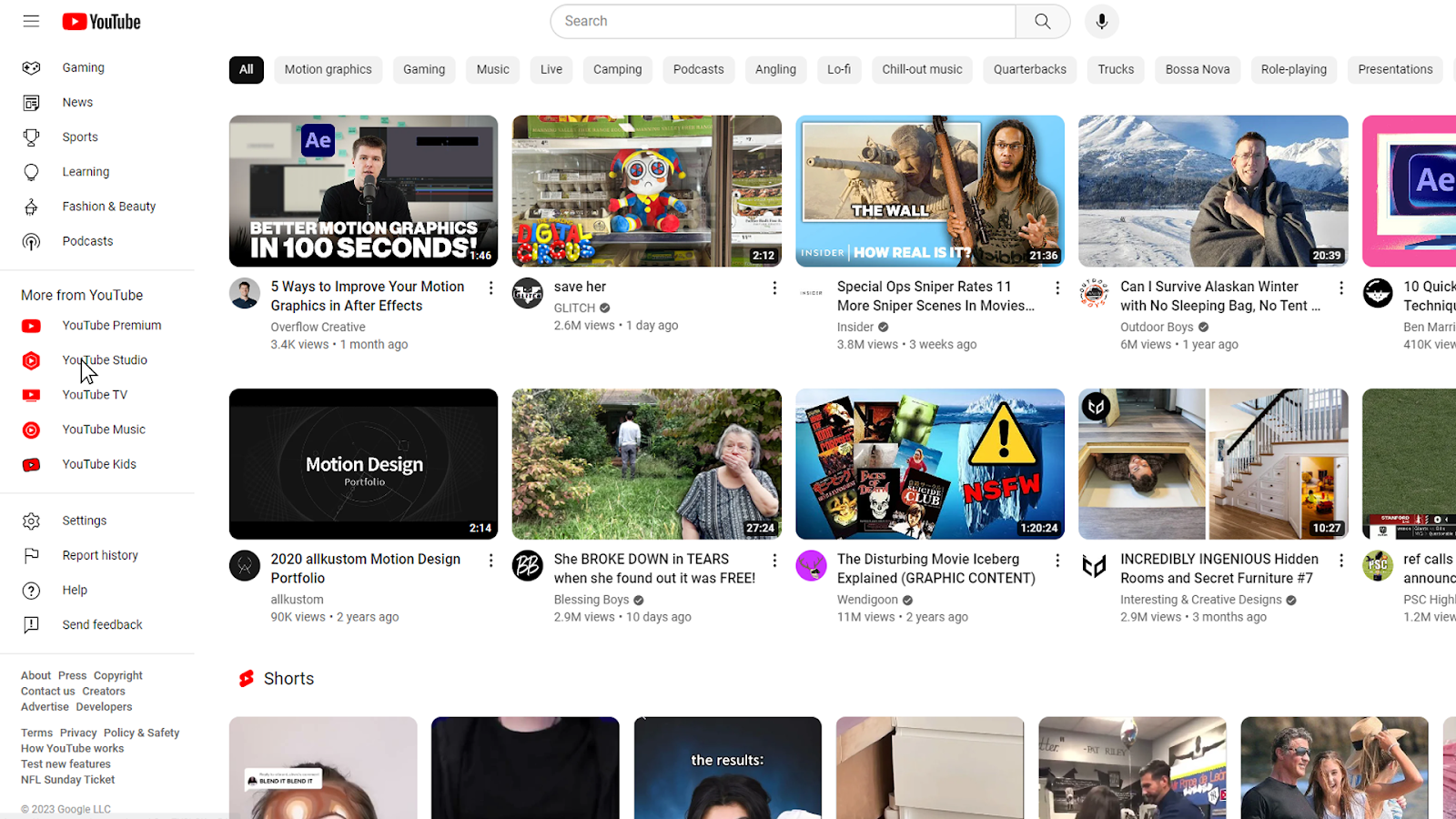
- Once signed in, on the left-hand side of your screen, scroll down and select Youtube Studio.
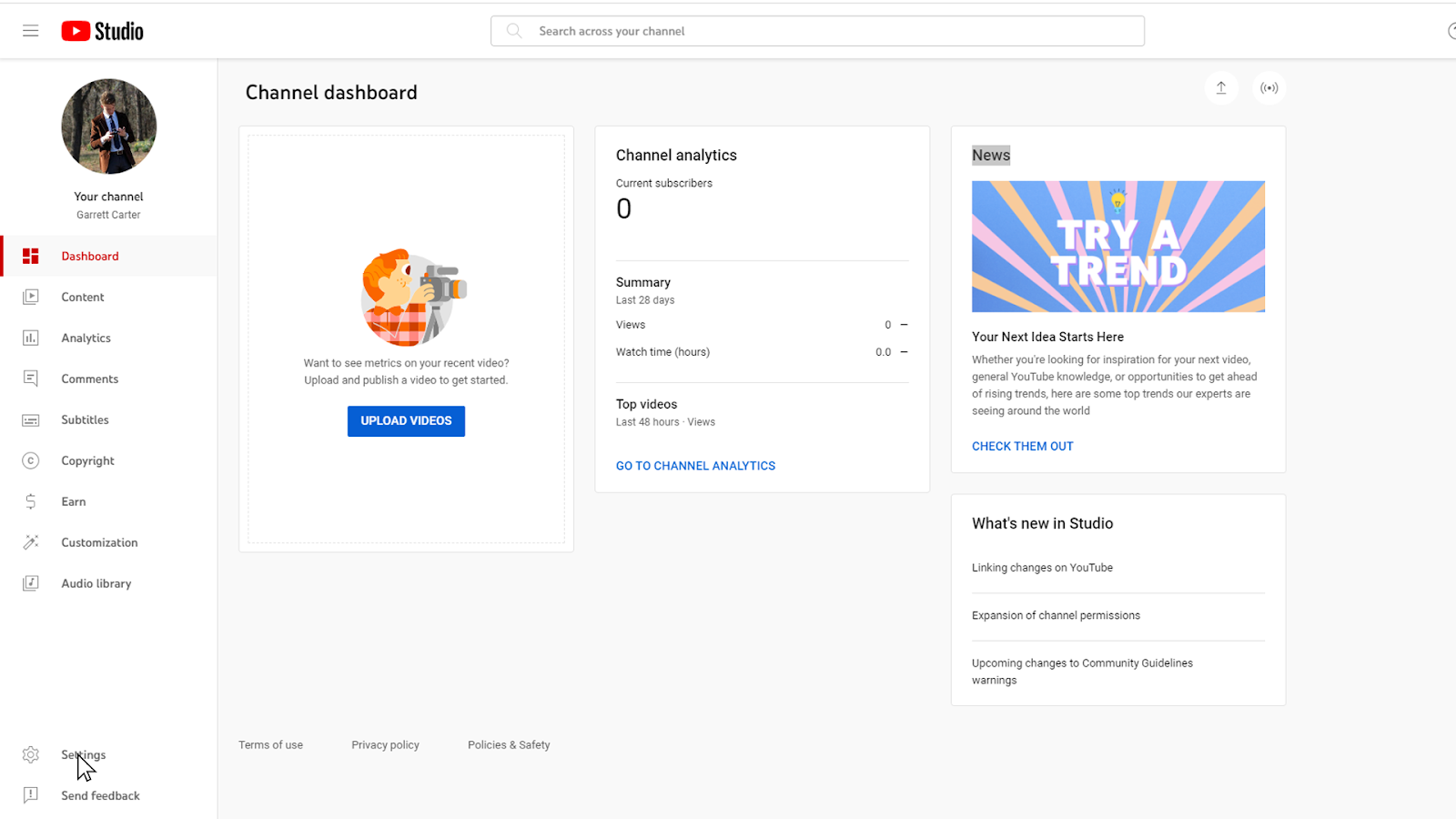
- Once in YouTube Studio, select settings in the lower left-hand corner of your screen.
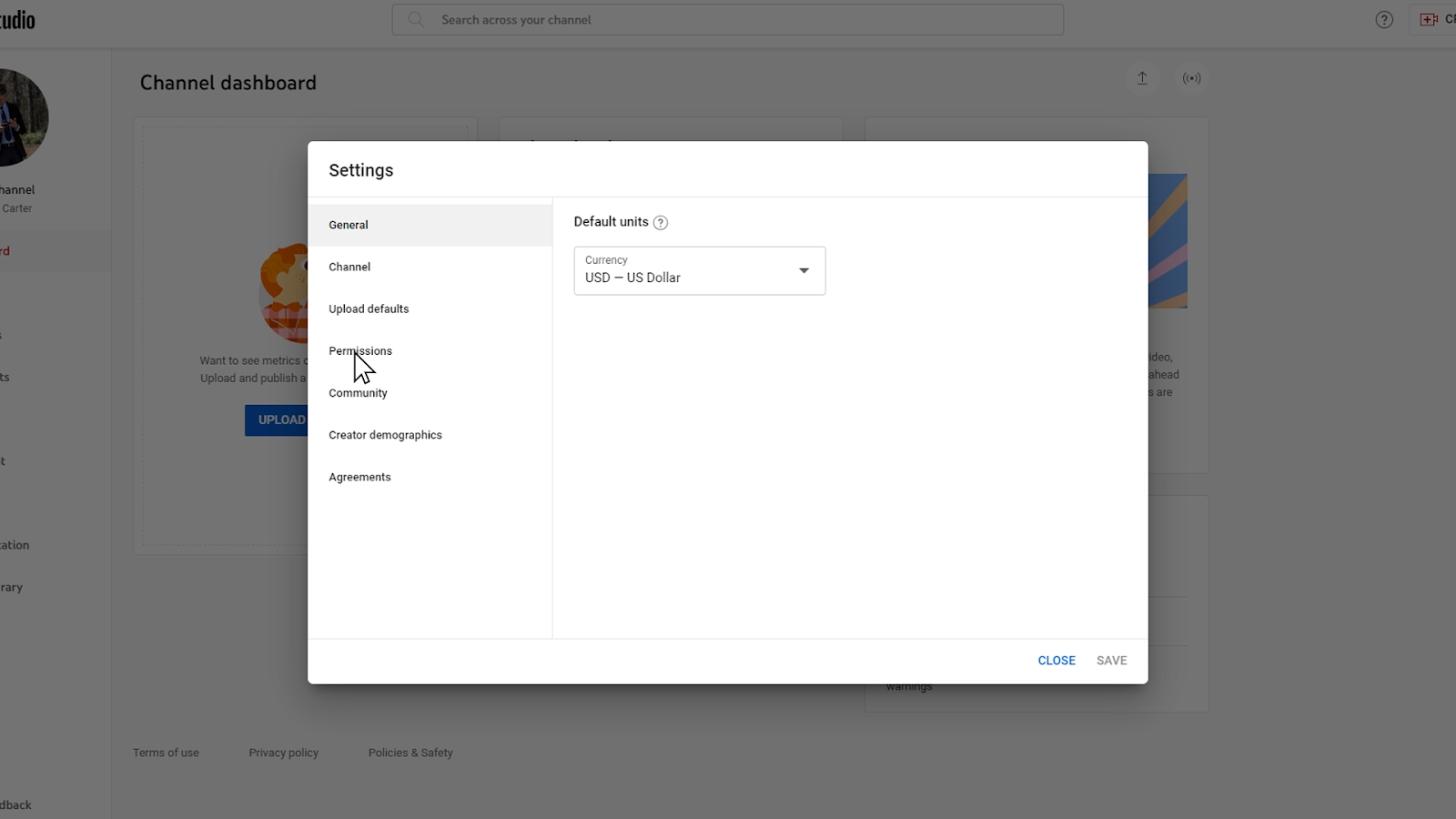
- In settings, select permissions.
- In permissions, select invite.

- Once you have selected invite, change access to “Editor”
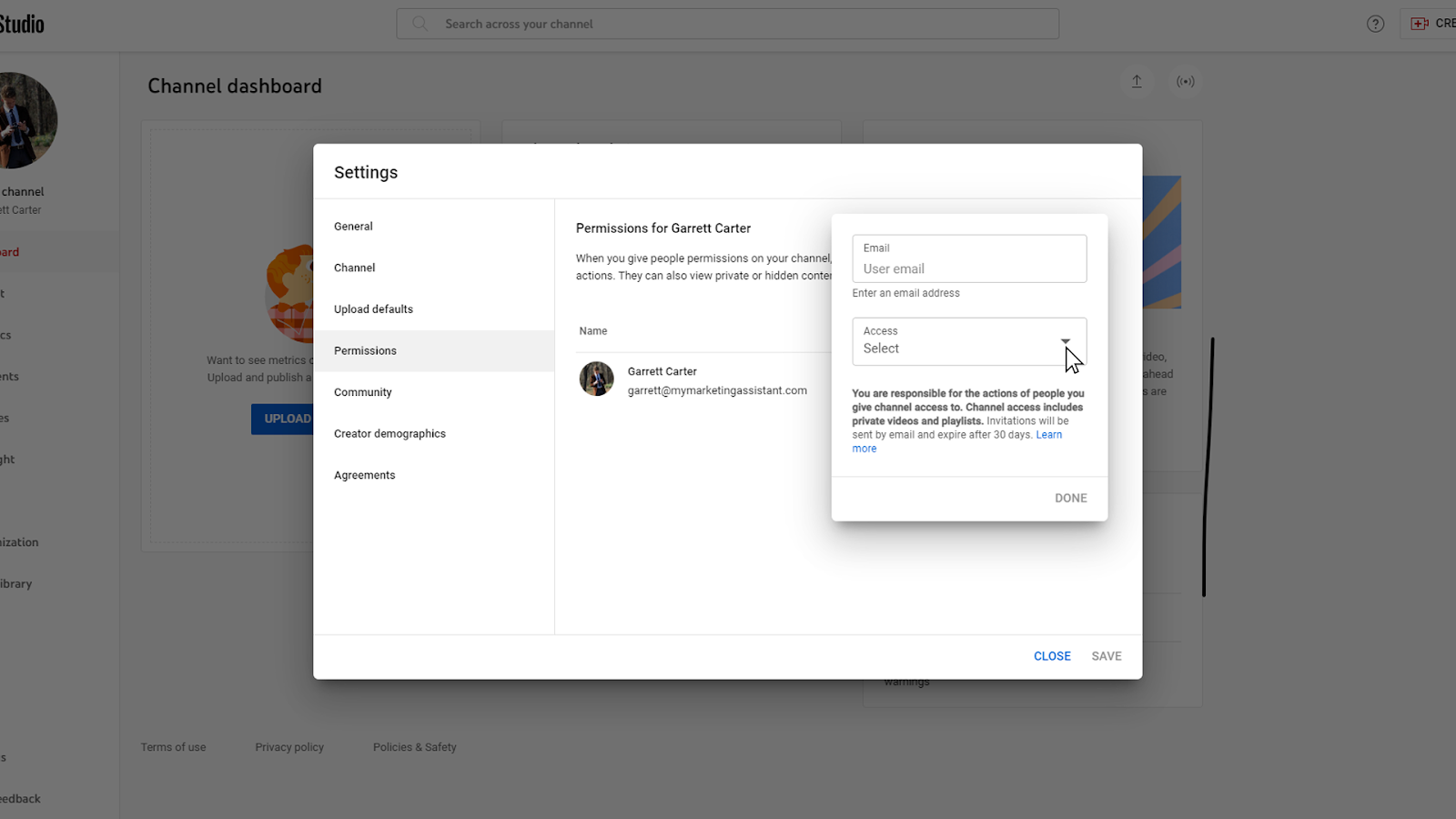
- With “Editor” access granted, enter “hello@mymarketingassistant.com.”

- Now press done.
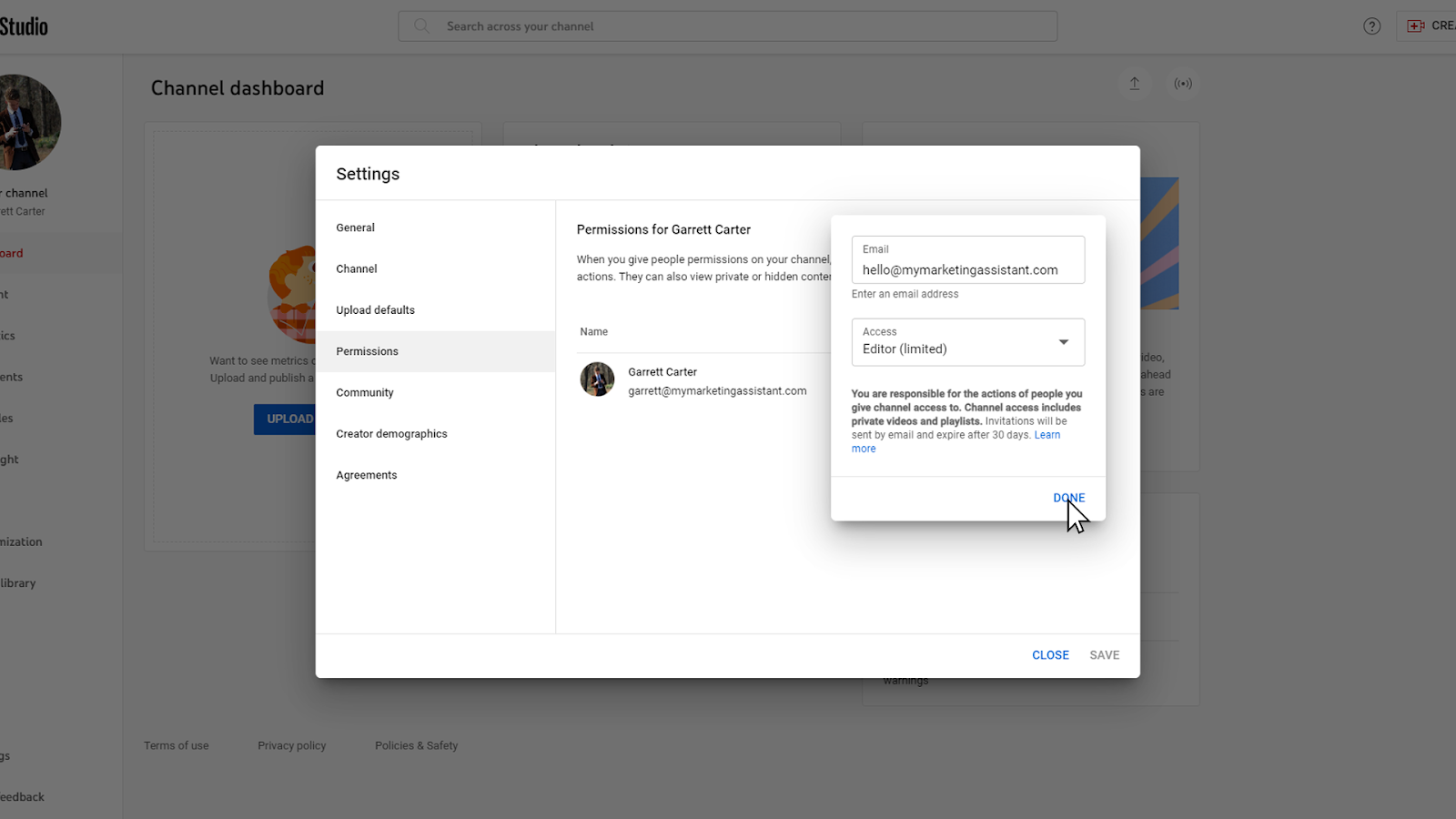
- Lastly, press save, and then you are all set!

Or, watch this video tutorial and we’ll show you how it’s done.
Now that we’re connected
Now that you have granted us access to your YouTube channel, we can take video tasks off of your hands and help you reach even further toward your audience and towards new audiences! My Marketing Assistant is available to help with tasks like:
- Video Thumbnails
- Video Bumpers (Intros and Outros)
- Video Captioning
- Publish Video or Audio to the Platform of your choice
- And much more!